Timer Logger App
Created to log times for work done on the computer when building websites for people or creating apps etc. This app quickly became a lot more in depth the moment I though about exporting the data, and then it got more complex from there…
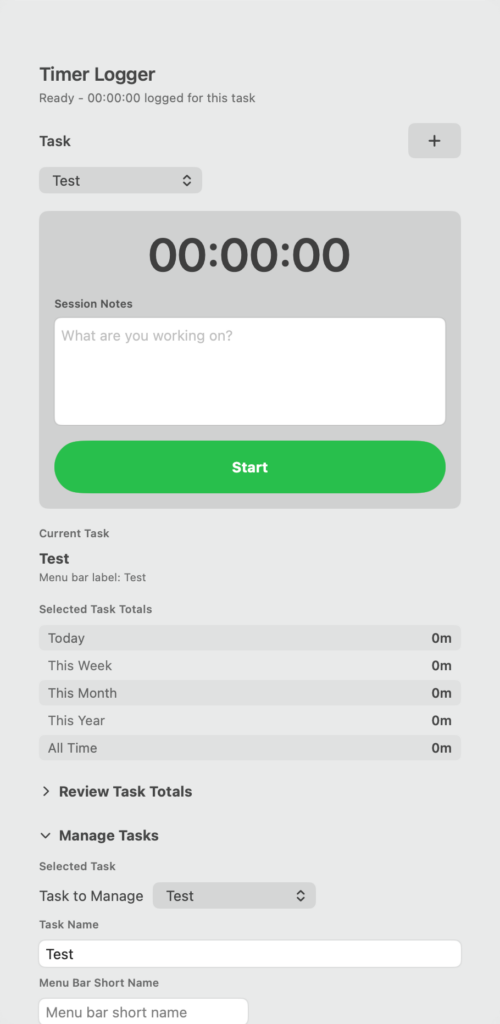
So, upon installing the app and opening in. The wording ‘Timer’ appears in the taskbar at the top of the screen. Click this word ‘Timer’ to open or close the window for the app where all the information is. You can also click outside of the window to close the app window. The app is still working if you close the window and have a timer running. Open the window / close the window whenever you want. The timer will run up in the taskbar for you to see it with the window closed. You can right click on the word ‘Timer’ in the taskbar to start or stop the timer, or to open or close the app.
Create a task at the top of the open window. Name it for what you are working on. Create a short name for it that will appear in the taskbar. Click the green start button when you are ready to start the timer. Optionally write some further details in to the box above the green button – details about what it is specifically that you’re working on.
Pause the timer and see the timer stop, but now count the time you have having a break. Handy if you’re wanting to track a 15 minute break etc. Hit ‘Resume’ to carry on counting the time. If you want to start a different task, stop the timer and make a new task name and description.
All data can be exported via .csv so that you can open it in a spreadsheet. I will be creating the ability to export to PDF shortly too.
View report for different tasks. View data from day, week, month, year & all time. When you choose week, you can show data from each day in that week and also choose which task or all tasks data to be displayed for this specified time. I am going to be displaying a pie chart with different colours for different tasks to make some data easier to view.
By default the window for the app opens on the right hand side of the screen. This can be changed in the settings at the bottom of the window by clicking on ‘Settings and Links’. you can choose Left, entre, or Right for the position of the app window. Also in this settings area there is a link to this website, a button to click to be able to submit a bug report, if you believe an area of the app isn’t working properly, and a button to request a new feature within this app that you think other people would like to see. While in the settings area, you can also quit the app. This removes it from the taskbar, and can be brought back to tha taskbar by opening the app again in Finder-Applications-Timer-LoggerApp. Also in the footer of the app window is the version number of the app.